

Name the problem before changing settings
Choose the description closest to what happened: the page does not load, the page loads but rejects account details, an installation prompt fails, or a completed action has an unclear result. Support information on phcrown.com starts with this distinction because each situation needs a different next step.
Write down the exact message and the stage at which it appeared. Avoid changing several settings at once; otherwise you may not know which change helped or created another problem.
For a page that will not load
Check whether an ordinary website loads on the same device. Refresh once, then compare another browser or permitted network if available. Check the address for typing errors. If only one destination fails, record that fact instead of assuming your entire connection is broken.
Optional connection tools are separate services with their own terms. Review the provider before installing anything, and distinguish DNS settings from WARP mode. Do not use a connection tool to disregard eligibility conditions. The illustrated reference steps below show the sequence to review.
For account or action problems
Use the destination’s own recovery controls for a rejected password. If an action stopped midway, look for a confirmation or account record before repeating it. Keep the reference supplied by the service and note the time and device involved.
Do not send passwords, one-time codes or complete identity documents to the reference community links. The Contact page explains the current channel limitations. This website does not provide an account-recovery backend or a guaranteed live-support schedule.
Prepare one clear request
Describe the expected result, actual result, relevant time and steps already tried. Include a redacted screenshot only if it adds useful information. A concise request is easier to interpret than a collection of unrelated screenshots.
The FAQ page on phcrown.com answers common website questions. For a personal account decision or service record, the responsible destination must provide the account-specific response.
iOS connection steps
Reference screens may differ from the current app version. Follow the provider’s current instructions and read each permission request.
1. Open the store
Open the App Store.
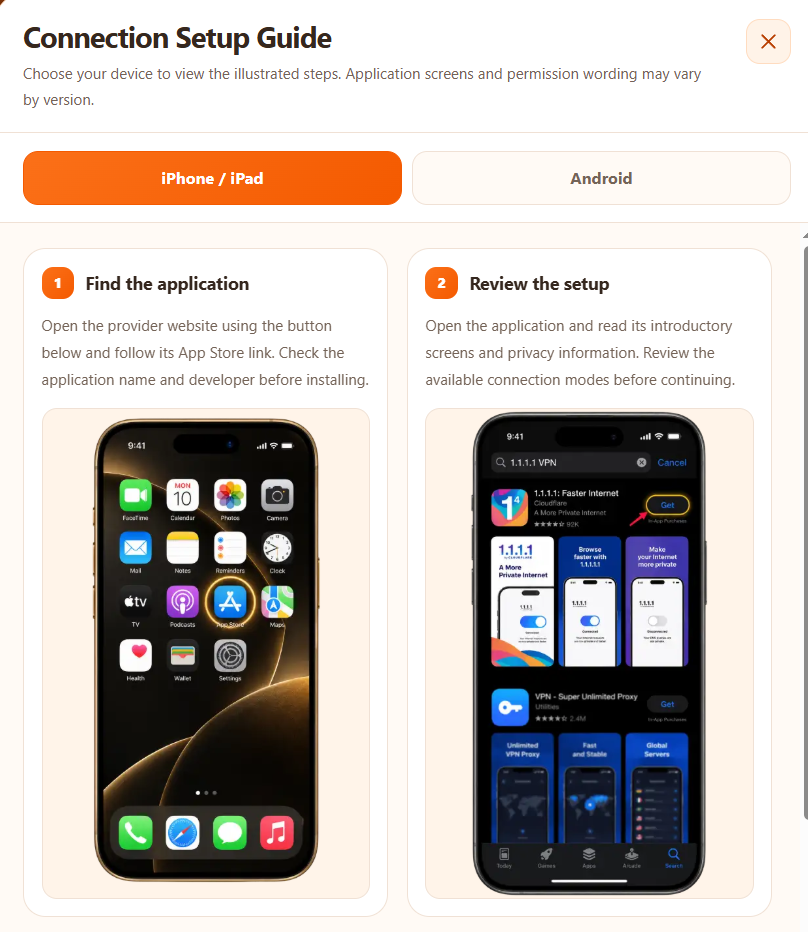
2. Check the publisher
Find 1.1.1.1: Faster Internet by Cloudflare and review its listing before installing.
3. Review setup
Open the app, follow its setup instructions and review any VPN-profile permission request.
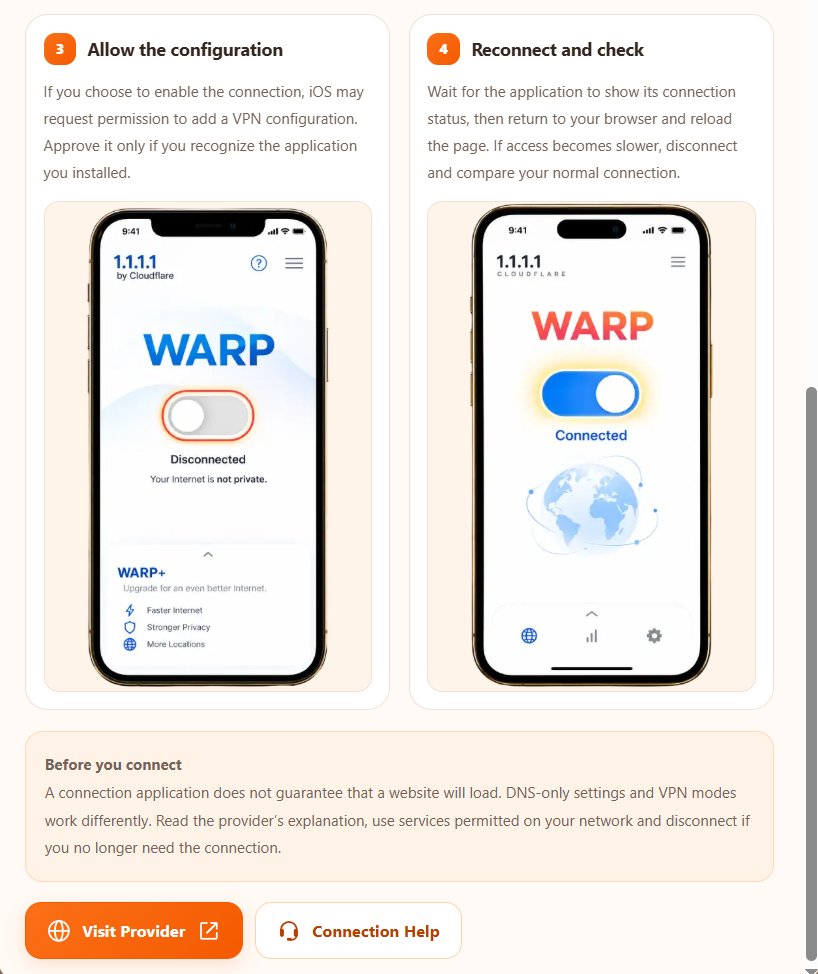
4. Check the connection
Enable WARP if you choose that mode. When the app reports a connection, return to your browser.
Android connection steps
Reference screens may differ from the current app version. Follow the provider’s current instructions and read each permission request.
1. Open the store
Open Google Play.
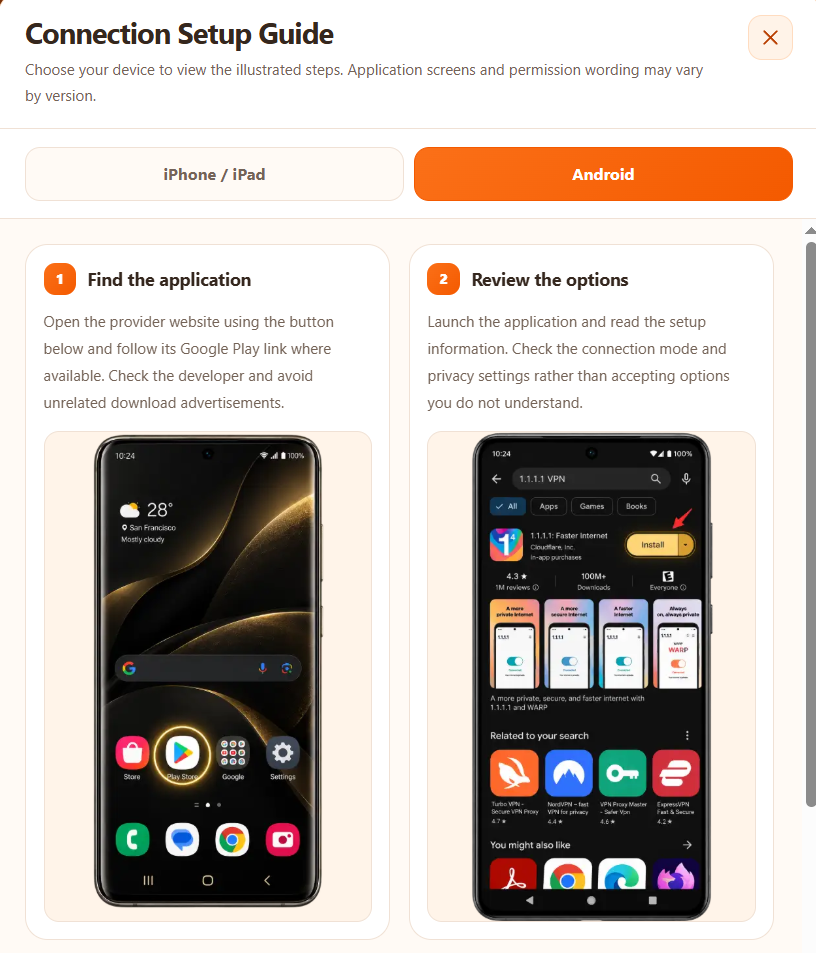
2. Check the publisher
Find 1.1.1.1: Faster Internet by Cloudflare and review its listing before installing.
3. Review setup
Open the app, follow its setup instructions and review any VPN-profile permission request.
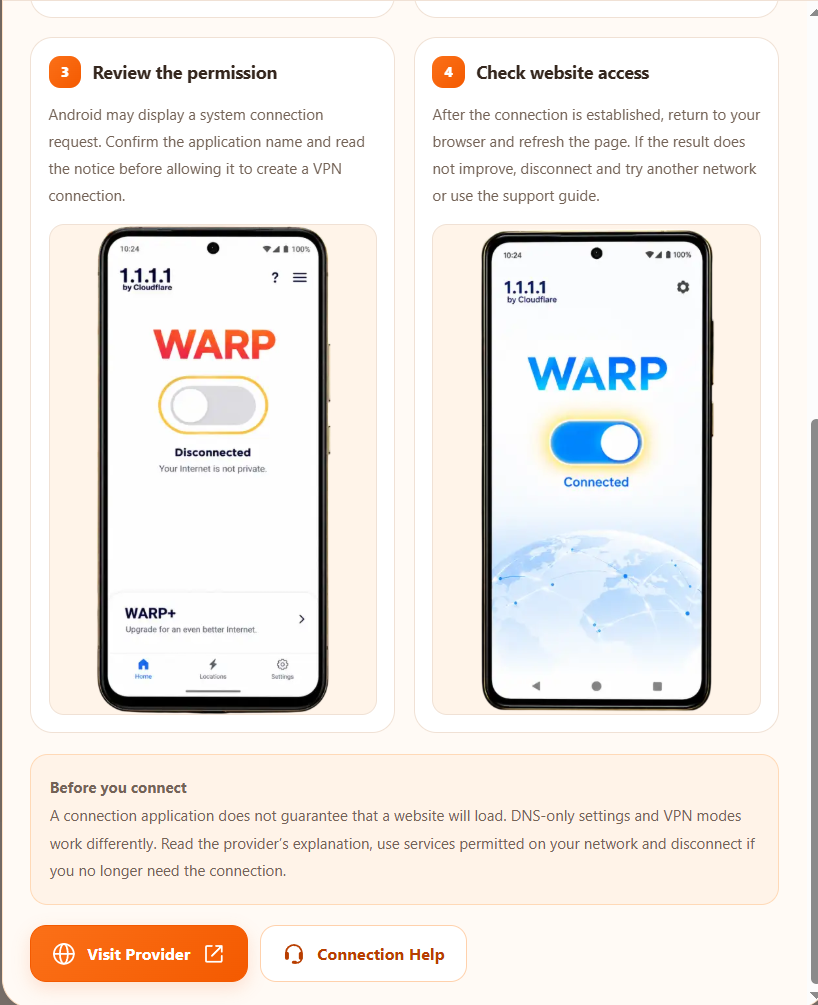
4. Check the connection
Enable WARP if you choose that mode. When the app reports a connection, return to your browser.
The optional connection download is provided by Cloudflare. Basic connection options and paid upgrades are distinct; review any purchase prompt separately.